My Workspace
My Workspace is a centralized hub where admins can create, view, approve, decline, print, and duplicate trip request in one place. The workspace streamlines operations, improves productivity, and reduces navigation time across the application, My Workspace consists of three main section or tiles:
-
Today’s Trips
-
Trips: Next Seven Days
-
My Trips to Approve
Accessing My Workspace
-
Click the My Workspace
 icon to open the workspace.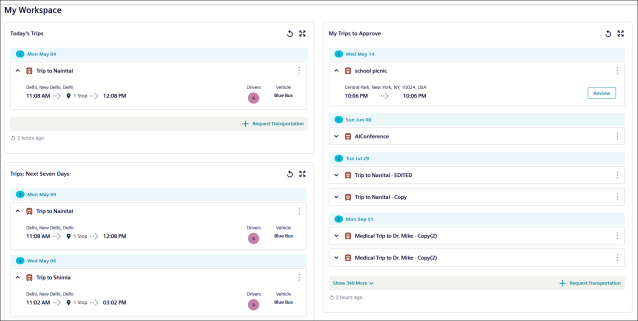
Using Today’s Trips
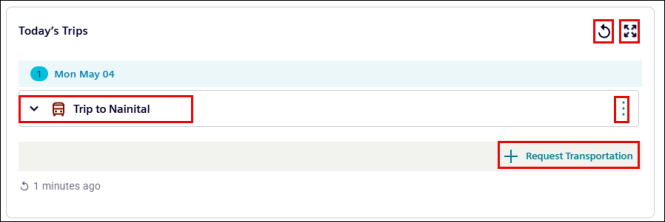
Use the Today’s trips section to view and manage approved trip requests for the current day.
To use Today’s Trip Requests:
-
Click the trip name to view the Driver, Vehicle, and Route details.
-
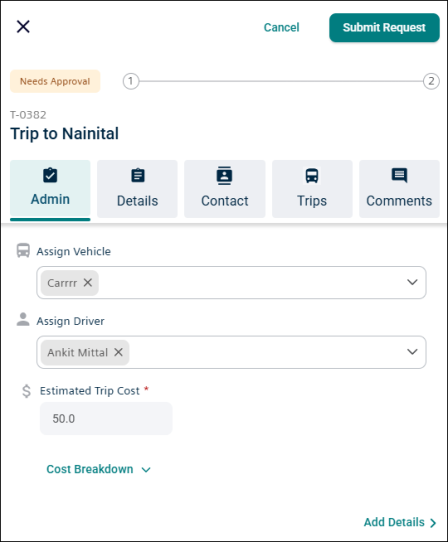
Click on the trip details to open the work order panel.

-
Click
 icon to refresh the section.
 -
Click
 icon to expand and focus on the section.
 -
Click
 icon to Duplicate or Print a trip Request.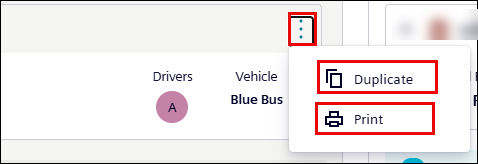
-
Click
 to create a new trip request.
Using Trips: Next Seven Days
Use the Trips: Next seven days section to view approved trip requests for the upcoming week.
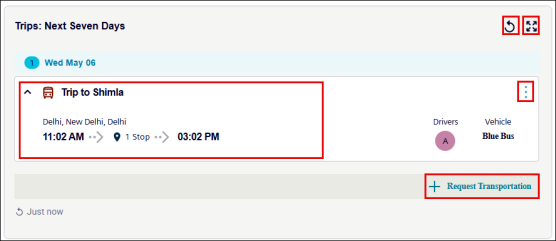
To use ‘Trips: Next Seven Days’:
-
Click the trip name to view the Driver, Vehicle, and Route details.
-
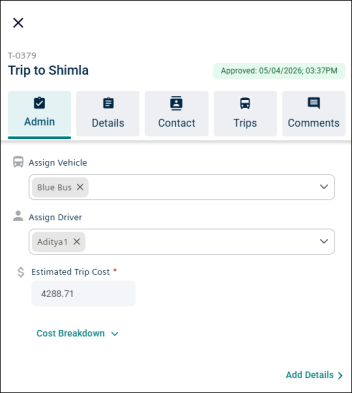
Click on the trip details to open the work order panel.

-
Click
icon to refresh the section. -
Click
 icon to expand and focus on the section.
 -
Click
icon to Duplicate or Print a trip Request.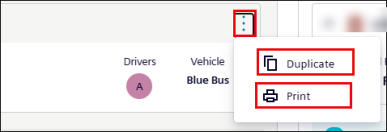
-
Click
 to create a new trip request.
Using My Trips to Approve
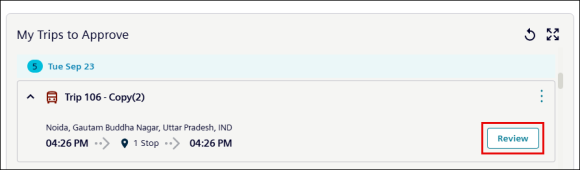
Use the My trips to approve section to review, update, approve and decline the pending trip requests.
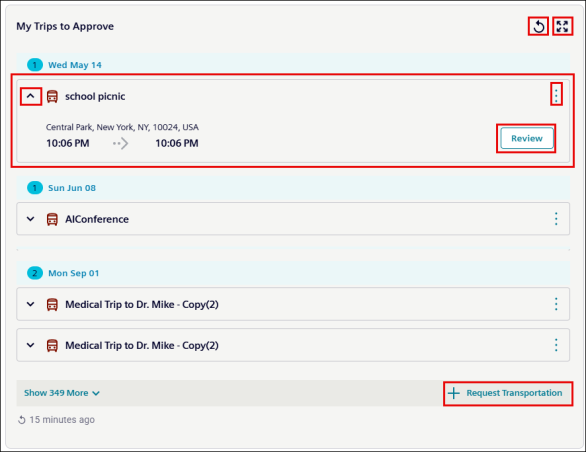
To use My Trips to Approve:
-
Click a trip name to view the Route details.
-
Click Review to Approve or Decline the trip requests and even update the other trip details as required.
-
Click
icon to update the section. -
Click
 icon to expand and focus on the section.
 -
Click
icon to Duplicate or Print a Trip Request.
-
Click
 to create a new trip request.
